Your Money, Your Keys: Withdraw From WireMe Without Us


If you've ever worked with a platform that holds your money, you know the quiet worry that comes with it. What happens if the app goes down, the company disappears, or support just stops answering? Can you actually get your money out, or is it stuck until someone else decides to let you?
With WireMe, you don't have to wonder. Your wallet is self-custodial, meaning it's controlled by your own key, not ours. That's not a slogan. It's something you can go verify yourself. You can move funds out of your WireMe wallet without ever opening the WireMe app, without asking us for permission, and without us being able to stop you. This guide shows you exactly how.
The steps below move real funds on a public blockchain. There's no undo button once a transaction confirms, and a private key pasted in the wrong place can be used to drain a wallet instantly. Go slowly, double check every address, and never share your private key with anyone, including someone claiming to be WireMe support.
The Steps
In this guide we will be moving USDC from your WireMe wallet. Note that this will have to be modified slightly if you are moving ETH or USDT from the same wallet.
(1) Install Metamask
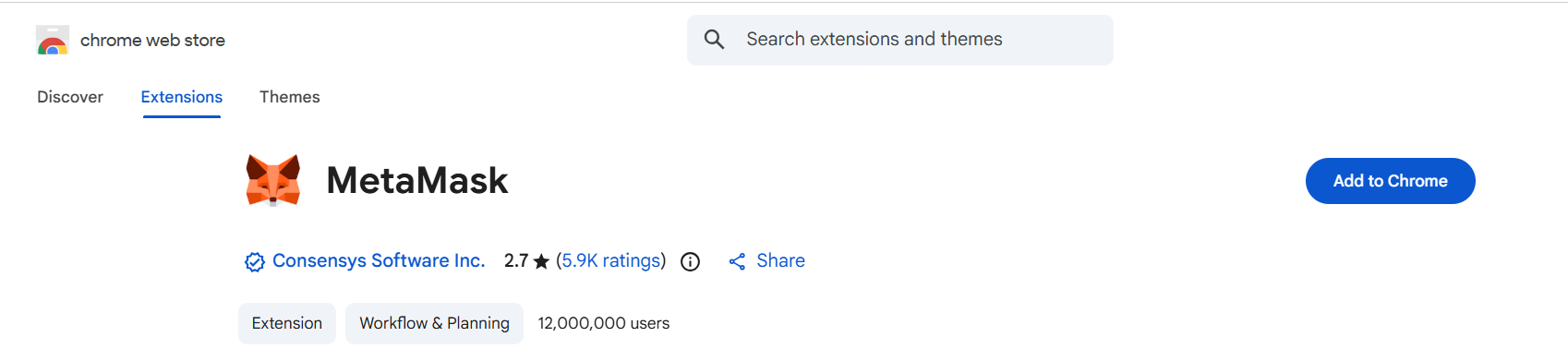
For this guide we'll be using the Metamask wallet. Get the browser extension from metamask.io and run through the setup. You won't use the seed phrase it generates. You're only using MetaMask as a safe place to import your own key next.
(2) Export you wallet from WireMe
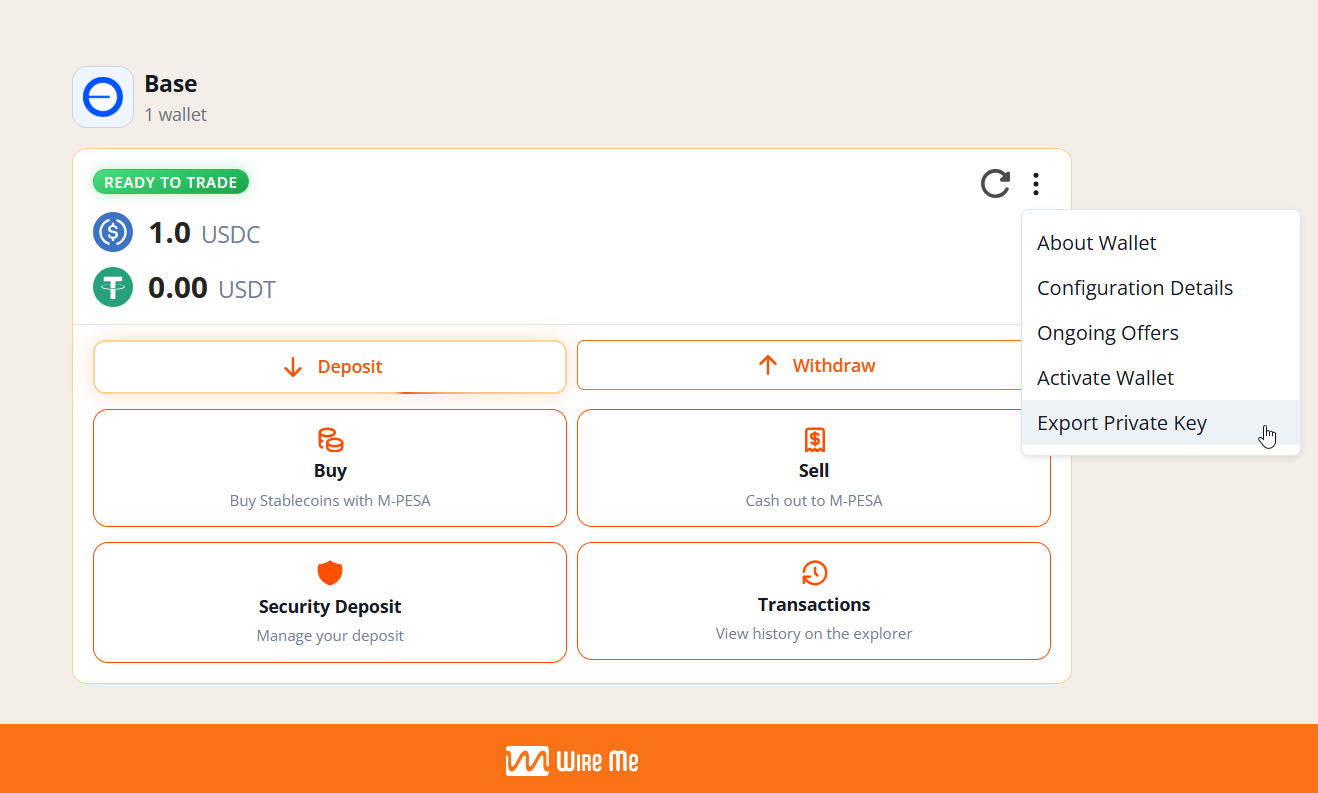
In the WireMe app, use the export wallet option in your wallet settings. You'll get a text file listing your smart wallet address, your owner EOA address, and the EOA's private key. Confirm the smart wallet address matches the app, then treat this file like cash. Keep it offline, never email or paste it anywhere except MetaMask's import screen, and delete it once you're done.
The smart wallet: is the address that actually holds your funds. It's the same address you see in the WireMe app.
The owner EOA: short for Externally Owned Account, is a separate address with authority over the smart wallet but no funds of its own. Its only job is approving what the smart wallet does.
The private key is the secret that controls the owner EOA, not the smart wallet. It's what you'll use to import your EOA into MetaMask. Do not share this with anyone.
(3) Import the private key into MetaMask
Open your fully configured MetaMask wallet extension in your browser.
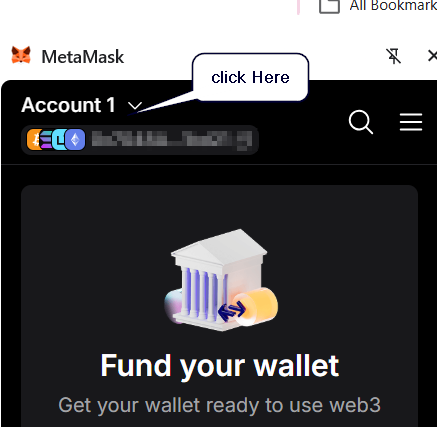
Click the Account dropdown.
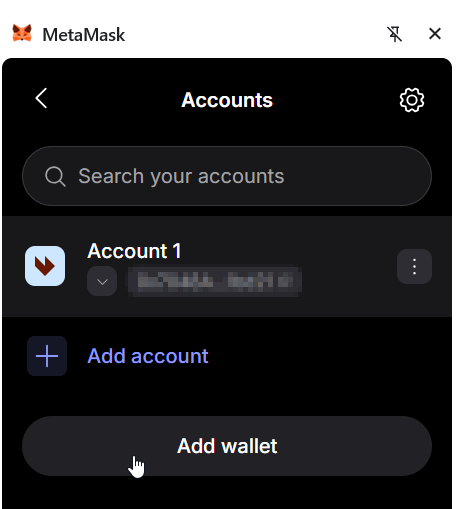
Choose Add wallet
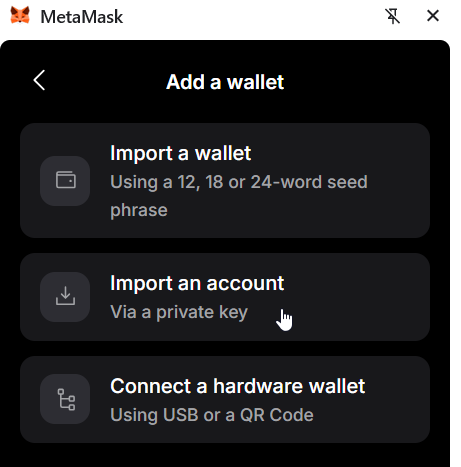
Choose Import an account
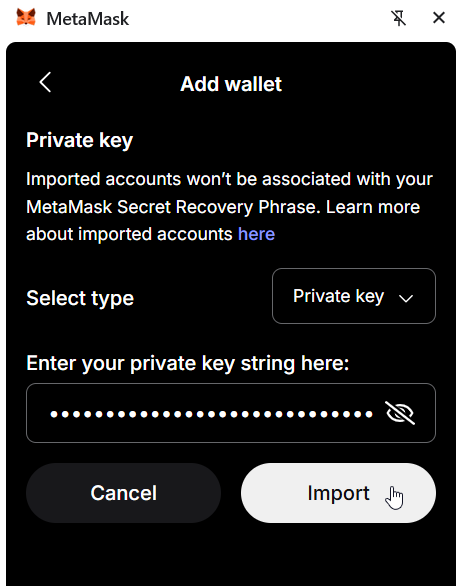
Paste the private key, and import the wallet.
This adds your EOA as a new account. It is separate from the default one MetaMask created during setup.
(4) Fund your newly imported account with a small amount of ETH
Inside the WireMe app, WireMe pays gas fees for you. Once you step outside the app and use your own EOA, that sponsorship no longer applies. You are responsible for gas yourself. Transactions on Base are paid in ETH, even though the funds you are moving are USDC or USDT.
Send a small amount of ETH, a few cents worth is enough, to the EOA address you just imported, on the Base network. This covers gas for the withdrawal transaction.
(5) Connect Remix to MetaMask
To construct the transaction you will be sending to withdraw your funds from your WireMe wallet we will be using Remix. To use Remix go to app.remix.live.
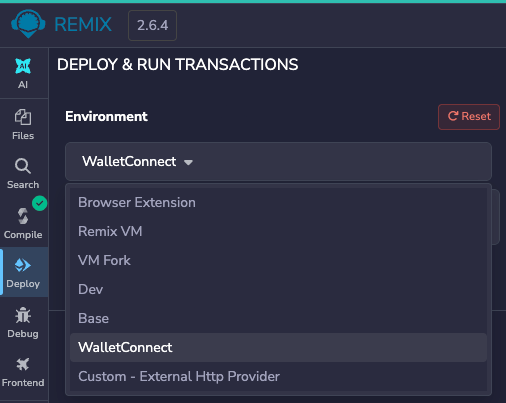
Open the Deploy panel from the left sidebar. In the Environment dropdown, choose WalletConnect and then MetaMask.
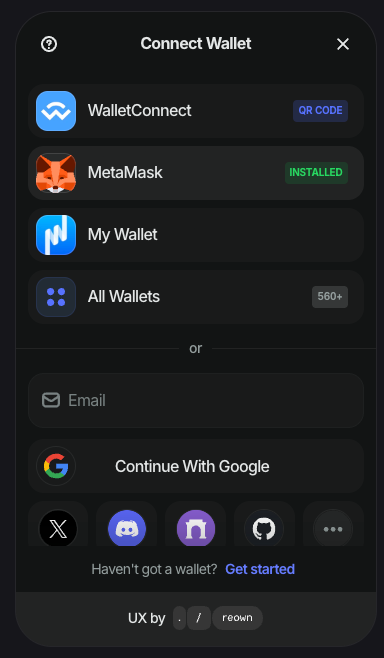
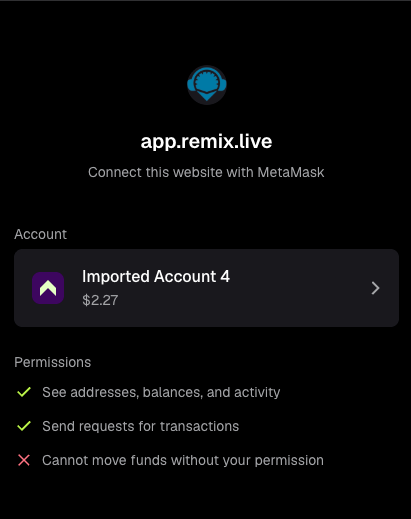
In MetaMask, approve the connection request from Remix.

Confirm the wallet you imported is selected at the top of MetaMask.
(6) Switch to the Base Network
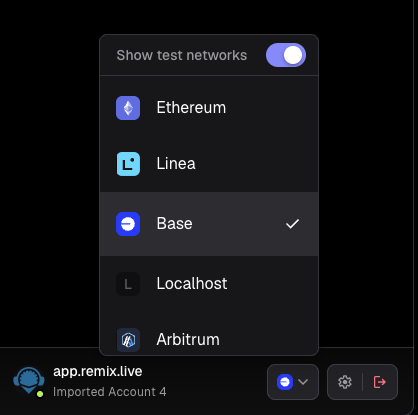
After approving the connection, MetaMask shows which network is active, as in the screenshot above. Confirm it says Base.
(7) Write and Compile the Smart Wallet Interface
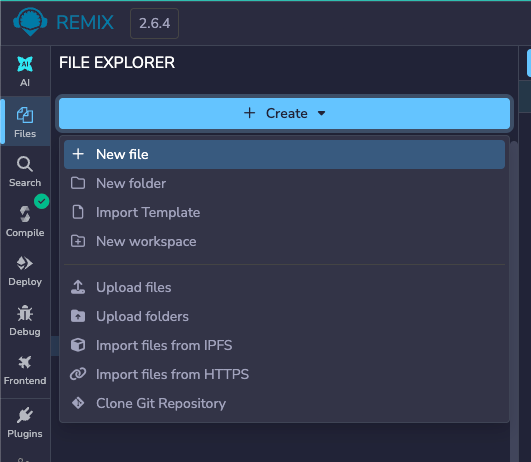
In Remix, open the Files panel and create a new file named ISmartAccount.sol. Paste in the following interface.
// SPDX-License-Identifier: MIT
pragma solidity ^0.8.19;

interface ISmartAccount {
    function execute(address dest, uint256 value, bytes calldata func) external payable;
    function owner() external view returns (address);
}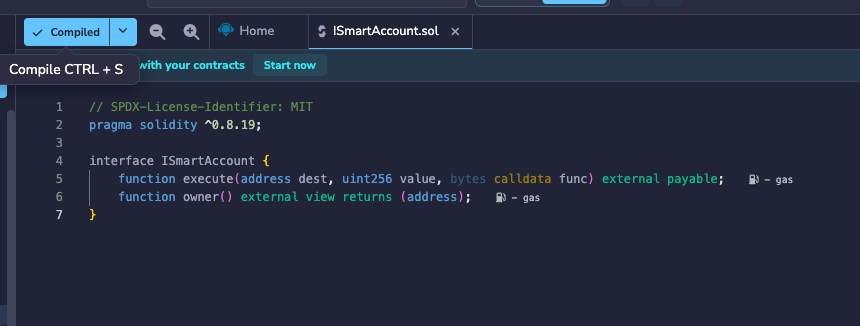
Make sure to compile the code. Compiling it lets Remix generate a function call form for it in the next step.
(8) Attach Remix to your smart wallet's address
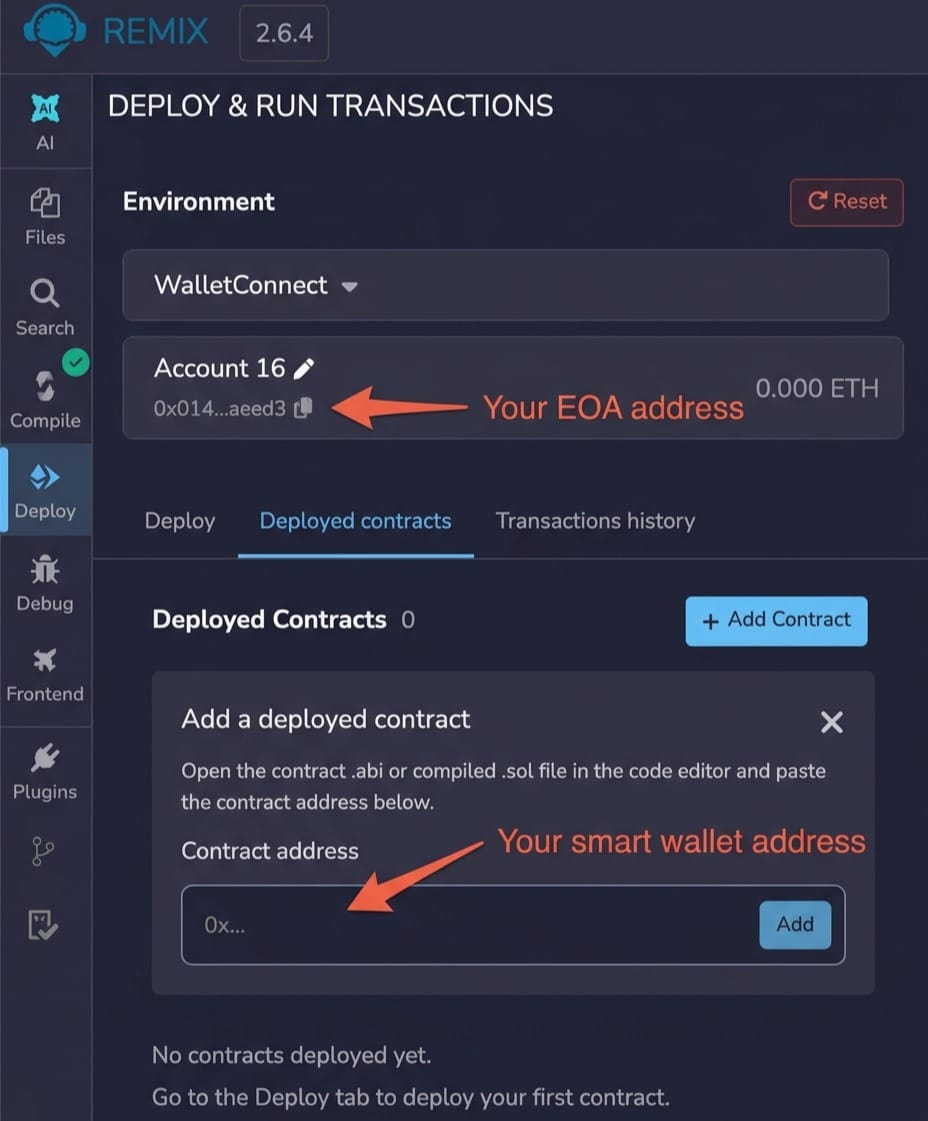
Back in the Deploy panel, open the Deployed Contracts tab. Paste in your smart wallet's address, and click Add.
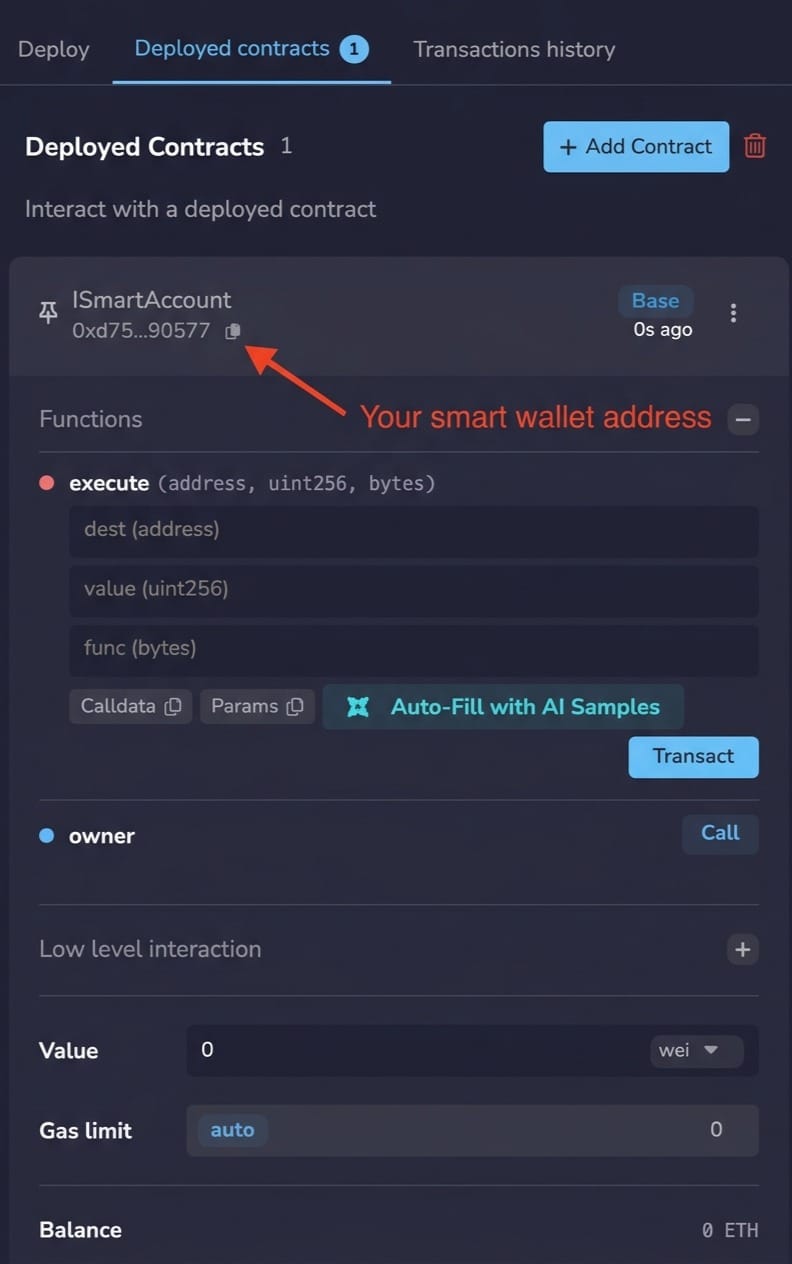
This is what it should look like after you've added it.
(9) Point Remix at the Stablecoin Contract
This next step requires your input. Depending on the token you're moving (USDC, USDT, etc) this will change. Look up the correct token contract address for the network you are on. If you're moving USDC on Base, official USDC contract is at 0x833589fCD6eDb6E08f4c7C32D4f71b54bdA02913. Ensure that you are using the official contract for your token.
(10) Build the Transaction Calldata
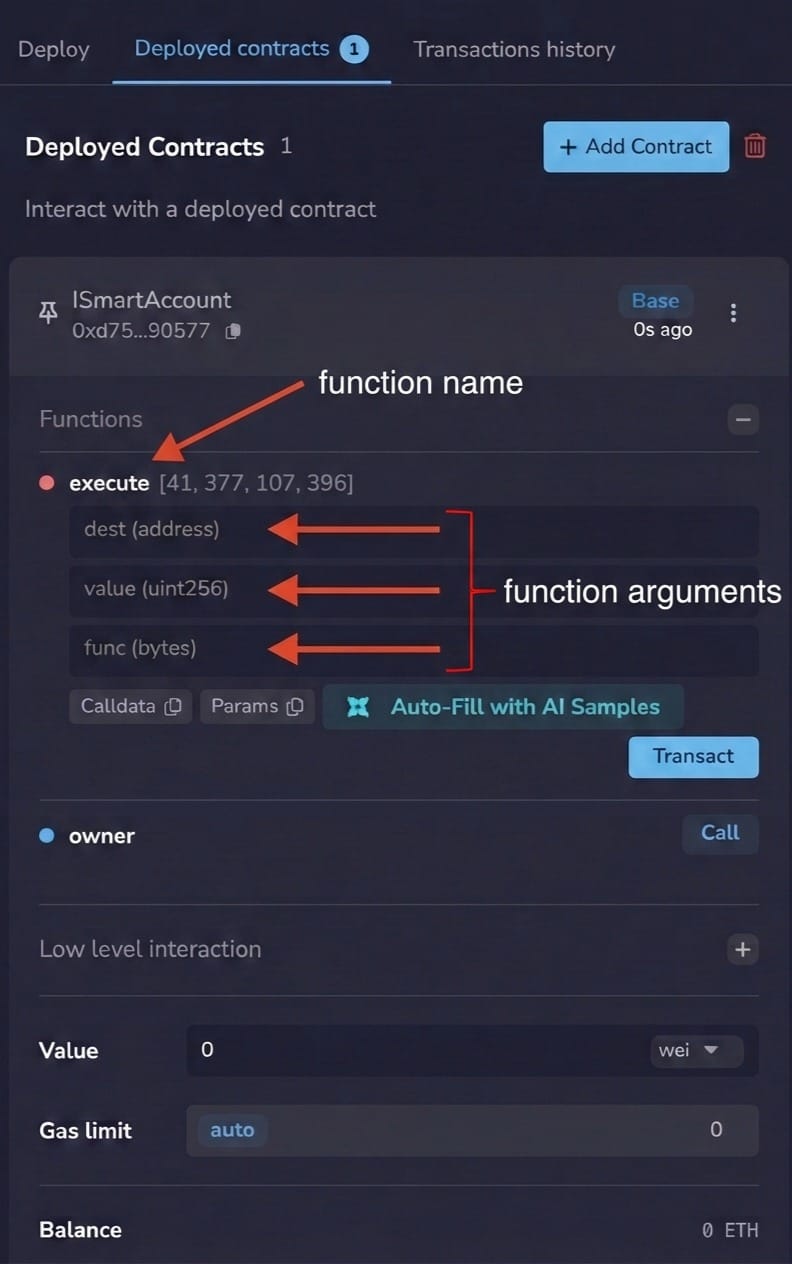
You will call the execute function to withdraw funds from your WireMe wallet. The execute function takes three arguments.
The first argument
The first argument dest is the token contract address you have from step 9.
The second argument
The second argument value is 0 since we are moving USDC. If you are moving native ETH this value would be the amount you'd be moving.
The third argument
In this guide we are moving USDC so this func argument will contain all information needed to move this token.
The func argument is a string that consists of three parts.
First Part
The first part is 0xa9059cbb – this corresponds to the name of the function we are calling. In this case it corresponds to function transfer(address,uint256) on the USDC smart contract.
Second Part
The second part is contains the address you'd like to send funds to. In this case we are using your EOA address (the address of your wallet in MetaMask). We want to send funds from WireMe to this wallet.
Let's say this is the wallet you want to send the funds to:
0xbd8cecd6d78c4f0d245ec7777ce60fcf60ab1c51This second part value would be 24 0's followed by the address above. So in this case it would be 000000000000000000000000bd8cecd6d78c4f0d245ec7777ce60fcf60ab1c51
Change this to whatever address you want to send the funds to.
Third Part
The third part is the amount that you are sending. This is a bit tricky because you're specifying the amount in hexadecimal and using the stablecoin's base units.
Let's illustrate this with an example. Say you have 25.17 USDC in your wallet that you want to transfer off. You first need to convert this to the stablecoin's base units. To do so you multiply this by 1,000,000 .
25.17 * 1,000,000 = 25,170,000This equals the amount of USDC base units you are transferring.
Next you have to convert this to hexadecimal. You can use this converter.

So 25170000 equals 0x1801050
To get the third part, you need to pad this hexadecimal number with zeros. To determine the number of zeros count the number of digits in your hexadecimal number. In this example it is 7 (don't count the 0x). And subtract that from 64
64 - 7 = 57In this example, you would pad your hexadecimal value with 57 zeros.
This would be the value of the third part
0000000000000000000000000000000000000000000000000000000001801050Putting it all together
Putting all three parts together you would get this value. This would be what you would use for the third argument
0xa9059cbb000000000000000000000000bd8cecd6d78c4f0d245ec7777ce60fcf60ab1c510000000000000000000000000000000000000000000000000000000001801050
(11) Execute the call in Remix and Approve in Metamask
In Remix it would look like this
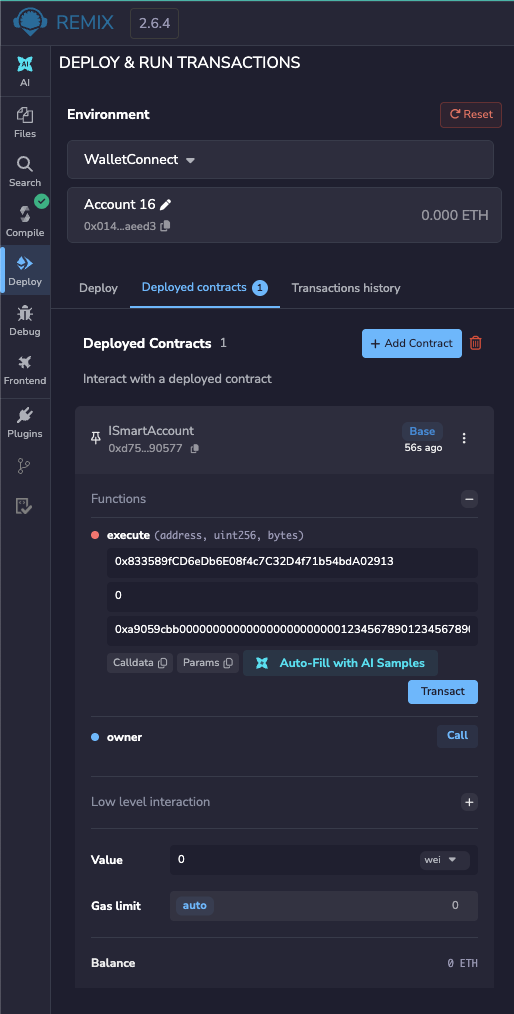
With dest, value, and func filled in, like screenshot above, click Transact.
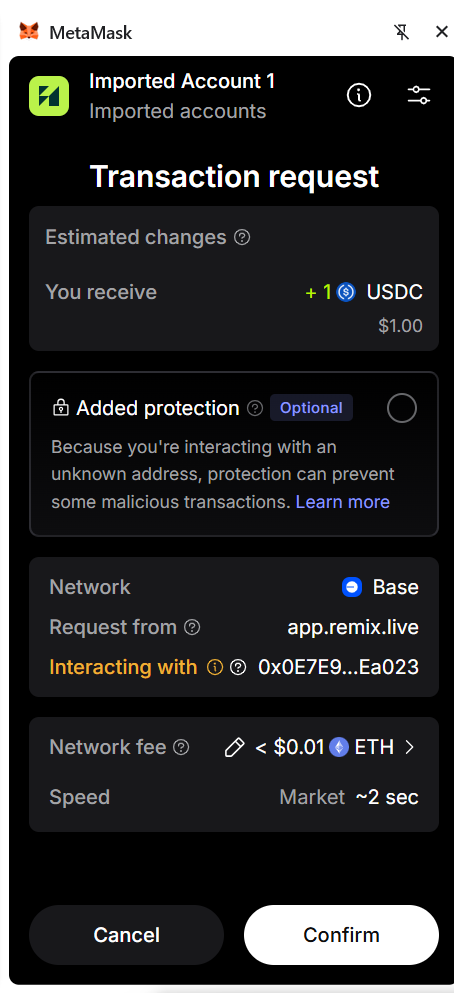
In your MetaMask extension you should see a transaction request like this saying that you will receive the amount of stablecoins you've specified in step 10.
(12) Confirm Receipt
Once your transaction is confirmed, your wallet balance in MetaMask should change to reflect the amount that was added. Make sure you are viewing the correct account & network in MetaMask.
Clean up
Once your funds have arrived, tidy up so nothing sensitive is left lying around.
- Delete the exported wallet file from your computer, including your Downloads folder and trash.
- Don't reuse that private key anywhere else. If you ever pasted it somewhere you're unsure about, treat it as exposed and move any remaining funds immediately.
If something goes wrong
- The transaction fails or reverts: the most common cause is not enough ETH for gas. Send a little more ETH to your EOA on Base and try again.
- MetaMask shows a zero balance: confirm you're viewing the Base network and that the token is added to your MetaMask account.
- The amount looks wrong: recheck your base unit math and make sure the third part is exactly 64 characters long.
- Nothing happens when you click Transact: make sure the imported account is selected in MetaMask and Remix is still connected to it.
If you're stuck, don't paste your private key into any chat or form to get help. Reach out to us at support@wireme.io and describe what you're seeing.
Why we built it this way
Most platforms ask you to trust that your money will be there when you want it. We'd rather you didn't have to. Your WireMe wallet is controlled by your key, so your access to your funds doesn't depend on our app, our servers, or our support team. This guide is proof: you just moved your money out without us.
Most people will never use these steps, and that's fine. What matters is that you could.
Ready to get back to trading? Head to WireMe and pick up where you left off.